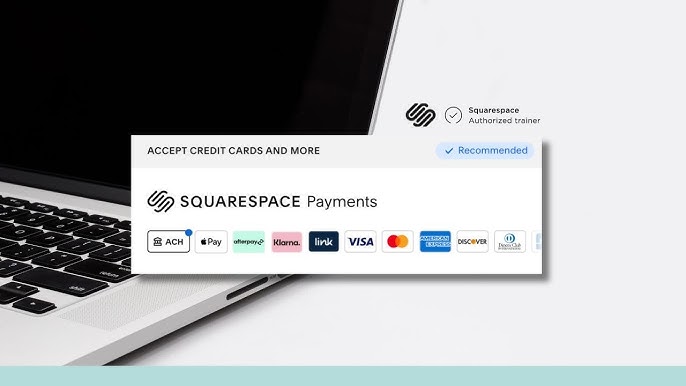
Accepting payments online is a critical step for any e-commerce store or service-based business, whether you’re a photographer selling prints, a coach offering online courses, a blogger monetizing content, or a small business owner launching a product line. Squarespace, a leading website builder, simplifies this process by integrating with trusted payment processors like PayPal and Stripe. These gateways allow you to accept credit cards, mobile payments, and more, ensuring a seamless checkout experience for your customers. This comprehensive guide provides step-by-step instructions for setting up PayPal and Stripe on your Squarespace website, tailored for photographers, consultants, coaches, bloggers, artists, freelancers, event planners, real estate agents, therapists, musicians, small business owners, e-commerce store owners, interior designers, writers, nonprofits, makeup artists, wedding planners, fitness coaches, and virtual assistants. We’ll also cover additional payment options, transaction fees, and troubleshooting tips to help you launch your store successfully. Ready to start? Sign up for a 14-day free trial with Squarespace and use code “WBE10” for 10% off your first year.
Why Use PayPal and Stripe with Squarespace?
PayPal and Stripe are among the most trusted payment processors globally, offering secure and versatile solutions for online transactions. Here’s why they’re ideal for Squarespace users:
- Global Acceptance: Both support millions of customers worldwide, making them reliable for international sales.
- Security: They use advanced encryption and fraud protection to safeguard transactions.
- Ease of Integration: Squarespace’s intuitive interface allows you to connect these gateways in minutes, no coding required.
- Versatile Payment Options:
- Stripe: Supports credit/debit cards, Apple Pay, Google Pay, and subscriptions, ideal for recurring services like coaching or memberships.
- PayPal: Enables payments via PayPal accounts, credit/debit cards, and Venmo (on mobile), with strong support for multiple currencies.
- Customer Trust: Both brands are widely recognized, increasing buyer confidence at checkout.
For a broader look at Squarespace’s e-commerce capabilities, see Is Squarespace Good for E-commerce?.
Read More: Calendar and booking feature in Squarespace
Choosing the Right Squarespace Plan
To accept payments via PayPal and Stripe, you need a paid Squarespace plan, as payment processors cannot be connected during the free trial. Here’s a breakdown of relevant plans:
- Personal ($16/month): Supports e-commerce with a 3% transaction fee per order. Suitable for low-volume sales.
- Business ($23/month): Includes advanced website features but charges a 3% transaction fee. Good for small stores.
- Commerce Basic ($27/month): No transaction fees, supports up to 1,000 products, and includes essential e-commerce features. Ideal for most small businesses.
- Commerce Advanced ($49/month): No transaction fees, supports up to 10,000 products, and offers advanced features like abandoned cart recovery. Best for growing stores.
Recommendation: The Commerce Basic plan is likely the best choice for most users, offering full e-commerce functionality without transaction fees. For larger stores, consider the Commerce Advanced plan. View Squarespace’s pricing details.
Comparison of Squarespace Plans for E-commerce
| Plan | Price (Billed Annually) | Transaction Fees | Max Products | Key Features |
| Personal | $16/month | 3% | Unlimited | Basic website, limited e-commerce |
| Business | $23/month | 3% | Unlimited | Advanced website, limited e-commerce |
| Commerce Basic | $27/month | None | 1,000 | Full e-commerce, no fees |
| Commerce Advanced | $49/month | None | 10,000 | Advanced features, abandoned cart |
You May Like: Setup meta titles and descriptions in Squarespace
Setting Up Stripe Payments
Stripe is a powerful payment processor that supports credit/debit cards, Apple Pay, Google Pay, and subscription payments. It’s ideal for businesses offering recurring services or digital products. Here’s how to set it up:
Step-by-Step Guide
- Log into Your Squarespace Dashboard:
- Visit squarespace.com and log into your account.
- Navigate to Commerce > Payments:
- In the left-hand menu, click “Commerce,” then select “Payments.”
- Connect Stripe:
- Locate the Stripe option and click “Connect Stripe.”
- If you have a Stripe account, log in to authorize Squarespace. If not, follow the prompts to create a Stripe account, providing your business and bank details.
- Enable Stripe at Checkout:
- Once connected, ensure Stripe is toggled on in the Payments section to appear at checkout.
- Test Your Setup:
- Place a test order to confirm that Stripe processes payments correctly.
Additional Notes
- Apple Pay and Google Pay: These are automatically enabled when you connect Stripe, offering customers convenient mobile payment options.
- Subscriptions: Stripe supports recurring payments, perfect for coaches or service providers offering memberships or courses.
- Setup Time: Typically takes 5–10 minutes, depending on whether you need to create a Stripe account.
For detailed instructions, refer to Squarespace’s guide on accepting credit cards with Stripe.
Setting Up PayPal Payments
PayPal is a widely recognized payment processor that allows customers to pay using their PayPal accounts, credit/debit cards, or Venmo (on mobile). It’s particularly useful for international transactions and customer trust.
Step-by-Step Guide
- Ensure You’re on a Paid Plan:
- PayPal cannot be connected during a free trial. Upgrade to a Personal, Business, or Commerce plan.
- Navigate to Commerce > Payments:
- In your Squarespace dashboard, go to “Commerce” > “Payments.”
- Connect PayPal:
- Click “Connect PayPal” and log into your PayPal Business account.
- Authorize Squarespace to process transactions by following the prompts.
- Select “Go back to Squarespace” (avoid “Continue to PayPal set up” to prevent errors).
- Agree to Transaction Fees (if on Business Plan):
- On the Business plan, confirm the 3% transaction fee per order. Commerce plans have no fees.
- Enable PayPal at Checkout:
- Ensure PayPal is toggled on in the Payments section.
- Test Your Setup:
- Place a test order to verify PayPal processes payments correctly.
Read More: Is Squarespace worth it?
Additional Notes
- Venmo: Automatically enabled on mobile devices when PayPal is connected, offering an additional payment option.
- PayPal Business Account: Required for integration. If you only have a personal account, upgrade to a Business account via PayPal’s website.
- Setup Time: Takes about 5 minutes if you have a PayPal Business account ready.
For more details, see Squarespace’s guide on accepting PayPal.
Comparing PayPal and Stripe
Choosing between PayPal and Stripe depends on your business needs. Both can be used simultaneously to offer customers more payment options. Here’s a detailed comparison:
| Feature | PayPal | Stripe |
| Transaction Fees | 3% + $0.49 per transaction (US) | 2.9% + $0.30 per transaction (US) |
| Payment Methods | PayPal, credit/debit cards, Venmo | Credit/debit cards, Apple Pay, Google Pay |
| Subscription Support | Yes, via PayPal Subscriptions | Yes, via Stripe Subscriptions |
| Currency Support | Multiple currencies | Multiple currencies |
| Setup Time | 5–10 minutes | 5–10 minutes |
| Best For | International sales, customer trust | Subscriptions, mobile payments |
- PayPal: Ideal for businesses with international customers or those wanting to leverage PayPal’s brand recognition and Venmo support.
- Stripe: Best for businesses offering subscriptions or preferring mobile payment options like Apple Pay and Google Pay.
For a broader comparison, check out SparkPlugin’s guide on Squarespace payment processors.
Additional Payment Options
Squarespace also supports Afterpay, a buy-now-pay-later service that allows customers to pay in installments, which can boost sales for high-ticket items. To set up Afterpay:
- Ensure Stripe is connected, as Afterpay processes through Stripe.
- Go to Commerce > Payments.
- Select Afterpay and follow the on-screen instructions.
- Save changes and enable Afterpay at checkout.
Afterpay is particularly useful for businesses like makeup artists or interior designers selling premium products or services.
Transferring Money to Your Bank
After accepting payments, you’ll need to transfer funds to your bank account:
- For PayPal:
- Log into your PayPal dashboard.
- Click “Transfer Money” and select your bank account.
- Ensure your banking information is added to your PayPal account.
- Transfers typically take 1–2 business days.
- For Stripe:
- Log into your Stripe dashboard.
- Go to Settings > “External payout accounts and scheduling.”
- Connect your bank account and set the transfer frequency (e.g., daily, weekly, or monthly).
- Transfers usually take 2–7 business days, depending on your settings.
Troubleshooting Common Issues
Here are solutions to common issues when setting up PayPal and Stripe:
- Payment Processor Not Connecting:
- Ensure you’re on a paid plan (not a trial).
- Verify that your PayPal or Stripe account is fully set up and verified.
- Check for typos in login credentials.
- Transaction Fees Applied:
- Confirm your plan type. Personal and Business plans charge a 3% fee, while Commerce plans do not.
- Customer Payment Issues:
- Ensure both PayPal and Stripe are enabled at checkout.
- Verify that the customer’s payment method is valid and not declined.
- Payment Options Not Showing:
- Check that the payment processor is toggled on in Commerce > Payments.
- Clear your browser cache or test in a different browser.
For additional support, visit Squarespace’s Help Center or contact their 24/7 support team.
Optimizing Your Store for Payments
To ensure a smooth payment experience:
- Enable Multiple Payment Options: Offering both PayPal and Stripe increases customer flexibility and trust.
- Test Checkout: Place test orders to confirm that payments process correctly and that customers see all available options.
- Optimize Checkout Design: Customize the checkout page in Design > Site Styles to match your brand, ensuring a professional look.
- Promote Payment Options: Highlight available payment methods (e.g., “Pay with PayPal or Apple Pay”) on product pages to encourage purchases.
For a complete store setup guide, see How to Set Up a Store on Squarespace.
FAQ
Can I use both PayPal and Stripe on my Squarespace store?
Yes, you can connect both PayPal and Stripe to offer customers multiple payment options at checkout.
Are there transaction fees with PayPal and Stripe on Squarespace?
Personal and Business plans charge a 3% transaction fee per order. Commerce plans (Basic and Advanced) have no Squarespace transaction fees, though PayPal and Stripe charge their own processing fees (e.g., 2.9% + $0.30 for Stripe).
How do I transfer money from PayPal or Stripe to my bank account?
For PayPal, use the “Transfer Money” option in your PayPal dashboard. For Stripe, go to Settings > “External payout accounts and scheduling” to connect your bank and set transfer frequency.
Can I accept Apple Pay or Venmo with Squarespace?
Yes, Apple Pay is automatically enabled with Stripe, and Venmo is available on mobile devices when PayPal is connected.
Conclusion
Setting up PayPal and Stripe on your Squarespace website is a straightforward process that empowers you to accept payments securely and efficiently. By integrating these trusted payment processors, you can offer customers a variety of payment options, from credit cards to mobile payments, enhancing their shopping experience. Whether you’re a photographer, coach, or e-commerce store owner, this guide provides the tools you need to launch a successful online store. For additional help with store setup, SEO, or web design, contact Nurul Nahid for tailored services.